The Complete Website Migration Checklist (It's Never Just the SEO)

Scott Macfarlane
Operations Manager at BFJ Digital
Keep ahead of the curve via our latest trends newsletter.
Contact us nowThe Complete Website Migration Checklist (It's Never Just the SEO)
Moving your website to a new domain, new hosting, or a new agency? Most website migration checklists cover the 301 redirects and knock off early. This one covers the lot — domain transfer, hosting, email, SEO migration, analytics, Google Ads, Meta, socials, local listings and CRM — because the thing that breaks is never the thing everyone planned for.
Not sure who actually owns your domain, your ad account or your Facebook page? No drama — Step 1 shows you how to find out.
Grab the checklist in the format that suits how you work:
📄 [Download the PDF] — all 148+ items in tick-box form. Print it, work through it, and don't let anyone switch anything off until every box is ticked.
📊 [Open the Google Sheets tracker] (File → Make a copy) — the same checklist built to actually run a migration from: every task has an owner column (client / agency / developer / IT provider), a status column and a live progress counter, plus a separate timed post-launch monitoring tab covering launch day, day 2, week 1, day 30 and day 90. Unowned tasks are the ones that don't happen; this makes sure every line has a name against it.
First, the only rule that actually matters
Nothing gets deleted, cancelled or decommissioned until everything is confirmed migrated — in writing.
After 16+ years and hundreds of migrations, we can tell you the classic disaster isn't a broken redirect. It's a hosting environment, an email server or an ad account getting switched off by one party while another party assumed it had been backed up. Once it's gone, recovery ranges from expensive to impossible.
So before you touch anything, agree who decommissions what, and only after written confirmation from whom. "We sent them access" and "they confirmed it works" are two very different sentences. Only one of them protects you.
Step 0: Plan it like a project, because it is one
- Set the goal in writing (new platform? new brand? faster site?) — the goal decides what "close to identical" means and what's allowed to change
- Assign every item to a named person — agency, in-house or developer. Unowned tasks don't happen, which is why the Google Sheets version of this checklist has an owner dropdown on every line
- Build the timeline backwards from a realistic launch date; a proper migration takes weeks to months depending on site size, not an afternoon
- Size decides the strategy. Google's own guidance: small-to-medium sites should move everything at once (helps its systems detect the move and update the index faster); only large sites benefit from moving in sections. If you do phase it, start with a section that changes infrequently
- If you're moving TO an existing domain, health-check it first: its backlink history, penalties, and what used to live there (Wayback Machine). You inherit a domain's past
Step 1: Know what you actually own (the asset inventory)
You can't migrate what you haven't listed. Every website sits inside an ecosystem, and a proper website migration moves the ecosystem, not just the files. List:
- Every domain name — live, old, redirect and defensive registrations
- Hosting accounts, server environments and staging sites
- DNS provider (often separate from the registrar — think Cloudflare)
- Email hosting and every mailbox and alias on the domain
- CMS logins, plus theme, plugin and builder licences
- Google Search Console, GA4, Google Tag Manager
- Google Ads, Meta Business Manager, Merchant Centre, Microsoft Ads
- Google Business Profiles — one per location, and yes, they all count
- Social accounts: Facebook, Instagram, LinkedIn, TikTok, YouTube
- Email marketing platform and your subscriber lists
- CRM, forms, chat, booking systems, payment integrations
- Call tracking numbers and IVR setup
- Review platforms, directories, APIs and webhooks
For every asset, record three things: who owns it, who has admin, and where the login lives. Ownership and access are not the same thing — that distinction is where most migration horror stories start.
Step 2: Domain migration, transfer and DNS
- Check the registrant of each domain is your business entity — correct ABN — not your agency, your IT provider, or an ex-staff member's personal email
- Get the domain password (EPP/auth key) for every domain — that's the key that authorises a domain transfer between registrars
- Unlock at the current registrar, confirm at the receiving end
- Export the full DNS zone (A, CNAME, MX, TXT, SPF, DKIM, DMARC) before anyone touches nameservers
- If DNS lives somewhere separate like Cloudflare, transfer that account into your name too
- Check SSL certificates — issuer, expiry, and whether they survive the move
- Drop TTL values 24–48 hours before cutover so changes propagate fast
- Share credentials securely — password manager, encrypted note. Never plain email.
Step 3: Website and hosting
The highest-risk stage, because responsibility here is the easiest to assume and the hardest to pin down.
- Take a complete backup — files and database — and confirm the receiving team has restored it and it works before the old environment is touched
- Get a fresh, named CMS admin account in your name. Not a shared agency login. If the migration doubles as a platform change, choose deliberately — WordPress for content flexibility, headless for speed at scale
- List every premium plugin, theme and licence — plenty sit under agency developer licences and quietly stop updating the day you leave. And check for domain-locked licences: some re-issue per-domain, so a domain change needs re-activation even when you own the licence
- Document the hosting platform, plan, and server config: caching, CDN, firewall
- Move or rebuild staging environments
- Lock in the old hosting decommission date in writing — after confirmation, never before
- Keep a copy of the final backup somewhere you control. Not just with either agency.
Step 4: Email
- Find out where email is hosted — it's frequently on the same server as the website, which means decommissioning hosting can silently kill your inbox
- List every mailbox and alias; migrate mail data before cutover
- Update your MX records — the setting that tells the internet where your email lives — at the right point in the sequence
- Rebuild SPF, DKIM and DMARC. They're the three records that prove your email really comes from you. Skip them and your quotes and invoices start landing in spam
- Transfer ownership of your email marketing platform and export the lists as backup
- One more thing on email, and it's a big one. Every SaaS account your business holds — hosting, CRM, ad platforms, accounting — is registered to an @olddomain address. Password resets and MFA recovery route there. Move the account emails on your critical logins before any old mailbox gets switched off, otherwise you can end up locked out of the tools you need to finish the job
- Re-verify sending domains
Step 5: The SEO migration checklist
The part everyone remembers — and usually about half of what actually needs doing. It's where an experienced SEO team earns its keep.
- Crawl the current site and export a full URL inventory before anything changes
- Build and test a 301 redirect map — a 301 is a permanent redirect that tells Google a page has moved for good. Map every old URL to its best new match. Not everything to the homepage; Google notices, and so will your rankings.
- Flatten redirect chains — old URL straight to final destination. Google's guidance: ideally no chain at all, never more than three hops
- The reassurance worth knowing: Google states that 301s and other permanent redirects don't lose PageRank. Done properly, the equity moves with you — the losses come from missing redirects, not from redirecting
- Prioritise redirects by value — score URLs by traffic, conversions and backlinks so your money pages are bulletproof first; the 2014 event page can wait
- Benchmark rankings, top landing pages and organic traffic so you can measure the move, not guess at it
- Export your backlink profile and make sure your most-linked pages redirect properly — years of earned authority depends on it
- Owner-level Google Search Console access on old and new properties — and verify every variant: www and non-www, HTTP and HTTPS, and each subdomain, for both sites
- Submit a change of address in Search Console if the domain is changing — one for each old-domain variant, not just the main one
- Keep both sitemaps submitted: the old-URL sitemap and the new one. Watching indexed counts fall on the old and rise on the new is the cleanest read on migration progress (ignore the redirect warnings on the old sitemap — that's the point)
- If you ever uploaded a disavow file, re-upload it against the new property — it doesn't follow you automatically
- Warn your host about the crawl surge: post-migration, Google crawls harder than usual (old URLs redirecting + new URLs discovering). Underpowered hosting at exactly that moment slows the whole move
- New XML sitemap, updated robots.txt, and a check that nothing shipped with noindex on
- Staging discipline: the staging site stays noindexed until launch; at launch, the noindex comes off and canonical tags get audited — while old and new versions are both reachable, misconfigured canonicals quietly index the wrong one
- Build a proper 404 page (navigation back, search) and monitor 404 traffic in GA4 for the first month — it's your missed-redirects report
- Leave the old site crawlable. Don't noindex or robots-block the old URLs after cutover — Google has to crawl them to see the redirects. Block them and Google never sees the redirects
- Don't forget Bing: run Site Move in Bing Webmaster Tools and update Bing Places. Smaller audience, still worth keeping
- Update the domain everywhere it's cited: directories, industry listings, partners, email signatures
- Watch rankings and crawl errors weekly for 90 days. Most SEO agency migration damage shows up in weeks 2–8 — while it's still fixable.
Step 6: Content — keep it as close to identical as you can
Google ranks pages, not domains. Keep the new page close to the one that earned the ranking and most of that ranking survives the move.
- Triage before you move. Every page gets one of five verdicts: keep as-is, refresh, consolidate, retire, or redirect-only. Migrating unaudited content means paying to move pages that were dragging the domain down anyway. Retired pages that still have backlinks pointing at them get redirected to the most relevant living page, never left to 404
- Don't redesign and migrate at the same time if you can avoid it. Change the address or change the house — change both at once and you can't tell which one tanked your traffic. If the business case forces both, accept the risk knowingly and benchmark harder
- Port ranking pages as close to word-for-word as possible — same headings, same body copy, same intent. Rewrite later, one page at a time, once rankings have settled
- Keep title tags and meta descriptions identical on migrated pages
- Keep URL slugs the same wherever possible — /services/seo/ should stay /services/seo/. Every slug change is another redirect and another small loss
- Migrate the media library — images, PDFs, videos — with the same file names and alt text; image results are traffic too, and hotlinked files 404 quietly
- Carry over schema/structured data (LocalBusiness, FAQ, Product, reviews) — rich results vanish fast when markup disappears
- Update internal links to point at new URLs directly, not through the redirect chain
- Run an accessibility check on the new templates — heading structure, colour contrast, keyboard navigation — and don't skip migrated PDFs and documents; they're the compliance gap everyone forgets
- Benchmark Core Web Vitals — Google's speed and stability scores — before and after. A slower new site can bleed rankings even with perfect redirects, and you won't know without the before-numbers
Step 7: Analytics and tracking
Your reporting is only as good as the data feeding it. Here's how to make sure it survives the move.
- Confirm your business owns GA4 at the account level — a user seat on your agency's account is access, not ownership
- Transfer the Google Tag Manager container; export it as backup
- Document every conversion, event and goal so measurement doesn't reset to zero
- Re-verify tracking on the new site before cutover — forms, calls, purchases
- Transfer call tracking, and check the numbers themselves — tracking numbers are often licensed to the agency, and they're printed on your vehicles, signage and directories
- Move heatmaps, session recording and reporting connections
Step 8: Google Ads, Meta and paid media
The messiest ownership model in digital, and where migrations most often turn into disputes.
- Google Ads: the ad account should sit under your billing and admin, with agencies linked through their manager account (MCC). When you part ways, they unlink and remove their users — you hold admin the whole way through. If the account was built inside an agency structure, get admin moved across before the relationship ends
- Export historical performance data and ad copy — years of campaign learning is business IP
- Meta: know the structural trap. An ad account created inside an agency's Business Manager generally can't be transferred out — that's a Meta rule, not an agency one. The clean setup: your own Business Manager, you own the page and the pixel, agencies get partner access. If you're currently in the trap, the fix is a new ad account in your own Business Manager
- Merchant Centre, Microsoft Ads, LinkedIn — same principle: your ownership, their access
- Update billing so campaigns don't stop mid-migration (or keep charging the wrong card)
- Agree final-month spend pacing in writing — end-of-month budget pacing is standard practice, but it should be visible, not a surprise on the invoice
Step 9: Socials — platform by platform
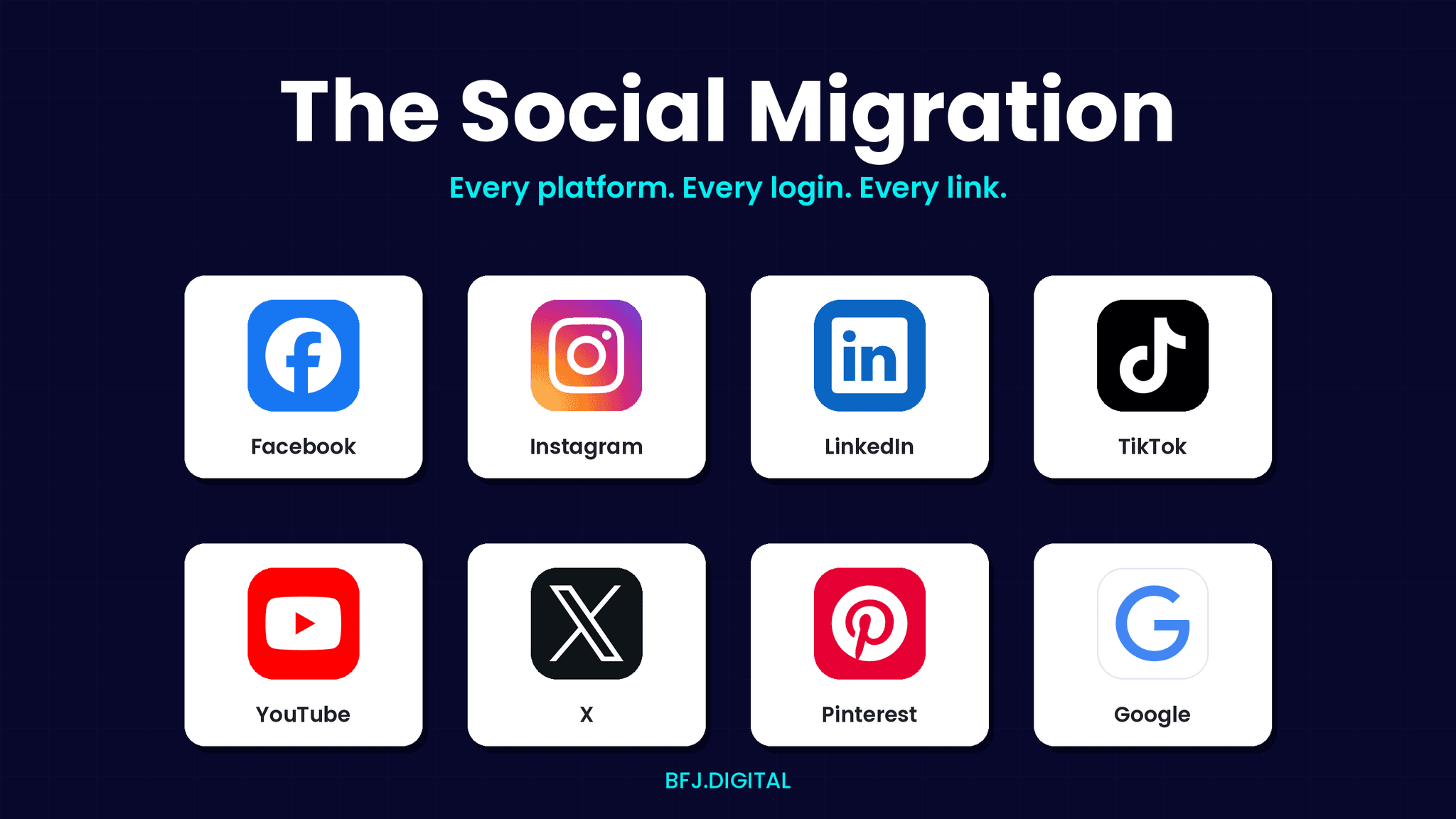
"Update the socials" is where migrations get hand-wavy, so here's the specific work per platform. Two rules apply everywhere: your business holds admin/owner on every profile (agencies are partners and editors, never sole admins), and every website field, bio link and pinned post gets updated after cutover.
Meta (Facebook)
- Confirm the Page sits inside your own Business Portfolio (Business Manager) — not the agency's. Ex-staff and old agencies still holding Full Control is the most common finding in our audits
- Verify the new domain in Business Manager (Brand Safety → Domains). Without it you lose link editing on posts and constrain ads pointing at the new site
- Update the website field in Page About, the CTA button destination, and any pinned posts carrying old links
- If your site uses Facebook Login, update the OAuth redirect URIs in the Meta app settings. They're the approved addresses Facebook sends logins back to. Skip it and "log in with Facebook" quietly stops working
- Ad account, pixel and Commerce Manager: covered in Step 8, but sanity-check the pixel fires on the new domain
- Confirm the professional account is linked to the right Facebook Page (the one in your portfolio)
- Update the bio link(s) — and if you run a link-in-bio tool (Linktree and friends), every button inside it, because those don't follow your redirects gracefully
- Update action buttons (book, order, contact) pointing at the old domain
- Running IG Shopping? The catalogue's domain and product URLs need updating in Commerce Manager
- Check who the Super Admins are on the Company Page — it must include a current, company-controlled identity, not just an ex-employee's personal profile. Recovering an orphaned LinkedIn page takes weeks
- Update the website URL in the About section, the custom button, and any Showcase Pages
- Old posts can't be bulk-edited — re-pin your featured posts with new links and let the rest ride on your 301s
- Nudge the team to update the links on their personal profiles; those are real referral traffic for B2B
TikTok
- Confirm ownership of the account and, if you advertise, of the TikTok Business Center — same ownership-vs-access logic as Meta
- Update the bio link
- TikTok pixel and events re-verified on the new domain; TikTok Shop domain updated if you sell there
YouTube
- Check the channel is owned by a company-controlled Google identity (Brand Account or Workspace user) — not a departed staffer's personal Gmail. We've seen businesses lose channels this way
- Re-verify the associated website for the new domain in YouTube Studio — cards and end screens that link out depend on it
- Update the channel About links and banner link, then sweep end screens, cards, descriptions and pinned comments on your top videos for old URLs (Studio's search makes this manageable)
X, Pinterest and the rest
- X: website field in the bio, pinned post
- Pinterest: claim the new domain (DNS or HTML tag) and let rich pins re-validate — old pins keep working only as long as your 301s do, one more reason the redirects stay on
- Any platform we haven't named: same three checks — who owns it, what URL fields it carries, what pinned/featured content links to the old domain
Local listings
- Google Business Profiles transfer one at a time, per location. Multi-location businesses routinely find one or two profiles were never handed over — usually a smaller location that doesn't get checked
- Update the website URL on every profile after cutover; Bing Places too
- Scheduling tools (Later, Hootsuite, Buffer, Metricool): reconnect accounts, update any queued posts carrying old links, and fix UTM templates still stamping the old domain
Step 10: E-commerce (if you sell online, read this twice)
The highest-stakes migrations are the ones where the website is the revenue. Everything above applies, plus:
- Merchant Centre: product feed URLs point at the new domain; feed regenerates and validates before cutover, or Shopping ads stop while you're mid-move
- Payment gateways: Stripe, PayPal and friends hold webhook URLs and allowed domains in their dashboards. Those don't follow redirects. Update them, or payments go through while your site never hears about it
- Transactional and lifecycle email: order confirmations, shipping notifications, abandoned-cart flows (Klaviyo, Mailchimp, native platform) all carry hard-coded links and sending domains — sweep and re-verify
- Review platforms: product review integrations (Yotpo, Trustpilot, Judge.me) are domain-registered; re-point them so years of review content keeps displaying
- Marketplaces and channels: eBay, Amazon, Meta Shops and Google listings linking back to old product URLs — those redirect fine if your 301 map covers every product URL, which is exactly why the map is page-to-page
- Test a real transaction end-to-end on launch day: add to cart, pay with a real card, confirm the order email arrives and the conversion fires. It takes five minutes and catches problems nothing else will
Step 11: Citations, aggregators and everywhere else you're listed
Your domain doesn't just live on your website. It's cited across an ecosystem of directories and data aggregators that feed search results, maps, GPS systems and voice assistants — and every inconsistent citation chips away at local rankings and customer trust.
- Audit your NAP citations (name, address, phone, website) before the move — you can't fix what you haven't listed
- Update the data aggregators that syndicate business info across the web — in Australia that means the sources feeding Google, Apple Maps, Bing Places and in-car navigation
- Work through the majors: Yellow Pages, True Local, Yelp, Hotfrog, industry association directories, chamber of commerce listings
- Update review platform profiles — Google, ProductReview, industry-specific sites — so reviews keep attaching to the right entity
- Fix partner and supplier websites linking to your old domain — those are backlinks worth keeping and the easiest ones to get updated (just ask)
- Check affiliate links, QR codes and shortened URLs in circulation — QR codes on brochures and packaging point wherever they were printed to point
- Don't forget the physical world: vehicles, signage, uniforms, packaging, business cards all citing the old domain. Budget the reprint or keep the old domain redirecting for as long as that stock exists
Step 12: Tell people — the communication plan
Plenty of migrations go technically fine and still hurt the business, because nobody outside the project knew it was happening.
- Customers first. Email the database before cutover: new web address, what's changing, what isn't. Post-cutover, confirm it went ahead
- Warn about payment fraud explicitly (this one matters). A publicised domain change is a gift to invoice scammers — the classic play is a fake "our details have changed" email that rides your announcement. Tell customers in plain words: our bank details have NOT changed, and we will never change them by email. If your remittance email domain is changing, tell customers exactly what the new legitimate address is and to call a known number to verify anything else
- Suppliers and partners: new domain, new email addresses, updated accounts-payable contacts — through a channel they already trust
- Your own team: email signatures, letterheads, proposal templates, invoice templates, booking confirmations, auto-responders. Old-domain artefacts leak out for months if nobody sweeps
- Your team, trained: whoever publishes content, processes orders or answers the phone needs to know the new CMS, the new URLs and the new email setup before launch day — plus one central log of every migration decision so "why did we do it that way?" has an answer in six months
- Legal and admin: update the website and email domain on contracts, terms of trade, privacy policy, ABN/ASIC records where cited, and insurance documents
- Keep old-domain email receiving (forwarding at minimum) for 12+ months — invoices, warranty claims and legal notices will keep arriving at the old address long after you've moved on
Step 13: CRM and integrations
- Transfer CRM admin; export a full backup, whether that's hubspot or others.
- Re-point every form, chat widget, booking system and payment integration — then test each one with a real submission, not a hopeful glance
- Update webhooks, automations and API keys
- Confirm transactional email (order confirmations, enquiry autoresponders) still fires
- Update any SaaS tools verified against the domain
Step 14: The paper trail
- Written confirmation of exactly what was handed over — and confirm receipt of each item yourself
- Ask the outgoing provider for their data retention and disposal policy: what they keep, for how long, when it's destroyed
- Settle final invoices and close the commercial relationship in writing — a disputed last invoice has a way of freezing cooperation exactly when you need it most
- Confirm IP ownership of code, content and creative per your original agreement
- Put one named person on each side in charge. Migrations with two agencies, an IT provider and a business owner all CC'd — and nobody accountable — are where assets fall through the cracks.
AI search: the item other checklists don't have yet
ChatGPT, Perplexity, Google's AI Overviews and Copilot now answer questions by citing web pages — and they cite the URLs they learned. Migrate without thinking about it and AI assistants keep recommending your old address, or worse, stop citing you at all.
- Benchmark your AI visibility before the move: which prompts mention your brand, which of your pages get cited — an AEO audit covers exactly this
- Keep old URLs redirecting permanently — AI training data and citation indexes refresh slowly; a lapsed redirect erases you from answers for months
- Preserve the content and structure of your most-cited pages with extra care — they're earning you AI recommendations, not just rankings
- Re-check AI citations at day 30/60/90 alongside rankings
Timing, rollback and the old domain
Three calls that separate a tidy migration from a lucky one:
- Pick your window. Migrate in your quiet season, never mid-campaign, never before your peak trading period, and cut over early in the week — you want business days in front of you, not a weekend, when something surfaces
- Have a rollback plan. The old environment stays live and untouched until the new one has survived at least a full business cycle. Know exactly how you'd point DNS back, and who makes that call
- Keep redirects live for at least a year — Google's stated minimum for transferring all signals; indefinitely from a user's perspective
- Keep the old domain — indefinitely. Renewal costs a few dollars a year; the redirects it carries protect years of backlinks, printed materials and bookmarks. Letting it lapse hands your brand equity (and your residual traffic) to whoever registers it next. Set it to auto-renew and forget it
For larger and multi-market sites: hreflang and app links
Two items that don't apply to every business — but sink the ones they do apply to:
- Multilingual / multi-market sites: rebuild your hreflang tags — the code that tells Google which country and language each page serves — against the new URLs, then validate them. Broken hreflang after a migration means Google serving the wrong country or language version — rankings look fine, revenue doesn't. If you run separate ccTLDs or subfolders per market, each needs its own redirect map and Search Console property
- If you have a mobile app: update deep links — Apple Universal Links (apple-app-site-association) and Android App Links (assetlinks.json) are verified against your domain. Miss them and every link into the app dumps users to a browser 404. Same for links hard-coded inside the app pointing at your old domain
- API consumers: if anything external calls endpoints on your domain — feeds, integrations, partner systems — list who's calling them, give those people notice, and keep the old endpoints answering long enough for everyone to move
Soften the landing: promotion and expectations
- Announce before you move. Email, socials, PR — the more people who know the new address ahead of cutover, the faster your direct and branded traffic recovers
- Rebranding? Run paid search on your old brand name for a few months after launch. People will keep searching for it, and that ad is the bridge across
- Set expectations with whoever owns the P&L: a temporary dip is normal — Google itself says a medium-sized site takes a few weeks for most pages to move across its index, and industry surveys put full traffic recovery at one to four months. Larger sites take longer. The 30/60/90 monitoring below is how you tell a normal dip from a broken one
After cutover: the 30/60/90 check
- Launch day: homepage, top pages and every form live-tested; redirects spot-checked; tracking firing in GA4 real-time; robots.txt and sitemap verified
- Day 2: full crawl vs pre-migration baseline; 404 log reviewed; Search Console coverage checked
- Week 1: every page loads, every form submits, every redirect resolves, email flows both ways, call tracking and transactional email confirmed
- Day 30: rankings and traffic against your benchmark; Search Console crawl errors; paid campaigns delivering normally
- Day 60–90: your most-linked pages holding position, old domain still redirecting, nothing on the inventory left orphaned
- After day 90: name who owns monitoring ongoing — the most dangerous moment isn't launch day, it's the month after the project team disbands and nobody's watching
This whole cadence — launch day through day 90+ — is pre-built as its own tab in the Google Sheets tracker, so the monitoring schedule survives the project team moving on.
Website migration FAQ
How long does a website migration take?
Plan on four to twelve weeks end to end for a typical business site, and most of that is preparation, not the cutover. Google's guidance: once you flip the switch, a medium-sized site takes a few weeks for most pages to move across its index. Large sites take longer.
Will migrating my website hurt my SEO?
A temporary dip is normal, and it usually recovers inside one to four months when the migration is run properly. Google confirms permanent redirects don't lose PageRank. The lasting damage comes from missing redirects, changed content and blocked crawlers — which is what this checklist exists to prevent.
How much does a website migration cost?
It depends on the size of the site, the platforms involved and how much content moves — every migration is different. [Book a free audit] and we'll scope yours properly.
Do I lose my backlinks when I change domains?
Not if every linked page 301-redirects to its new equivalent. Export your backlink profile first, make sure the most-linked pages redirect page to page, and ask your top linkers to update their links. That's equity you keep.
Should I keep my old domain after migrating?
Yes, indefinitely. Renewal costs a few dollars a year, and the redirects it carries protect your backlinks, printed materials, QR codes and AI citations. Google recommends redirects stay live for at least a year. Set the domain to auto-renew and never think about it again.
Can I redesign my website and migrate at the same time?
You can. Don't, if you can avoid it. Change the address or change the house — change both and you can't tell which one moved your traffic. Google's advice is the same: one change at a time.
The bigger picture
A website migration is never just a website migration. It's a domain transfer, an email cutover, an SEO migration, an ad-account restructure and a legal handover, all at once and usually on a deadline. Run it off one checklist with one accountable owner. Delete nothing without written confirmation. Do that and it's a non-event. Wing it, and you find out which asset nobody owned three weeks after the person with the password has moved on.
[Download the PDF checklist] — every step above in tick-box form. Or grab the (make a copy) with per-task owner assignment, status tracking and the timed post-launch monitoring tab built in.
Mid-migration and something already feels off? We've spent 16+ years untangling handovers other people started. [Book a free audit] and we'll tell you exactly what's at risk. No hype, just what's actually happening.
Scott Macfarlane
Scott Macfarlane has been with BFJ Digital for almost 10 years, and in that time, he's become the glue that holds complex projects together. As Operations Manager, Scott is the person who makes sure everything actually happens—from the big strategic moves down to the technical details that can make or break a campaign.
With more than a decade of experience in digital marketing, Scott brings a unique blend of creative thinking and technical expertise to every project.
His dual degree in Creative Industries and Information Technology provides him with comprehensive skills that bridge the gap between strategic vision and technical execution. Scott's expertise encompasses project and account management, strategic oversight of both paid and organic media channels, and technical implementation.
He is dedicated to building strong client partnerships and takes a hands-on approach to driving optimal performance across all campaigns.
Scott's ability to manage complex digital ecosystems while maintaining focus on client goals has made him an invaluable asset to the BFJ Digital team. His commitment to staying current with emerging technologies and marketing platforms ensures that clients benefit from cutting-edge solutions tailored to their specific business needs.
Ready to See the Bigger Picture?
Want to understand how your digital and real-world marketing impact each other? Not sure if your CRM is supporting your paid media efforts? Just need some clarity and a clear plan to better ROI? Book your free strategy session today for an in-depth audit and action plan to double your digital marketing ROI.
- Meet with a strategy specialist to build a growth plan
- Increase your media performance by up to 200%
- Improve business efficiencies to increase ROI via automation and increase profit
- We cut to the chase. What digital marketing is actually working?